Using Assistants
An assistant is the personality you talk to in chat. Every assistant has its own name, avatar, description and category — and, behind the scenes, its own knowledge and abilities set up by your admin.
This page explains how to pick an assistant, what changes when you do, and what to expect once the conversation starts.
Starting a Chat with an Assistant
There are two ways to begin.
From the Assistants page
- Open Assistants in the sidebar. Depending on your role it sits directly in the list or inside the WorkSpace group.
- Find the assistant you want.
- Click Start Chat on its card.
- A new conversation opens with that assistant already selected, and it appears in your recent chats in the sidebar.

If the card shows Request Access instead of Start Chat — or no button at all — that assistant isn't available to you yet. See Browsing Assistants for how to get it.
From New Chat
- Click New Chat in the sidebar.
- You land on the chat home screen, with a default assistant already selected for you.
- Pick a different assistant from the suggested chips if you want one, then type your message.
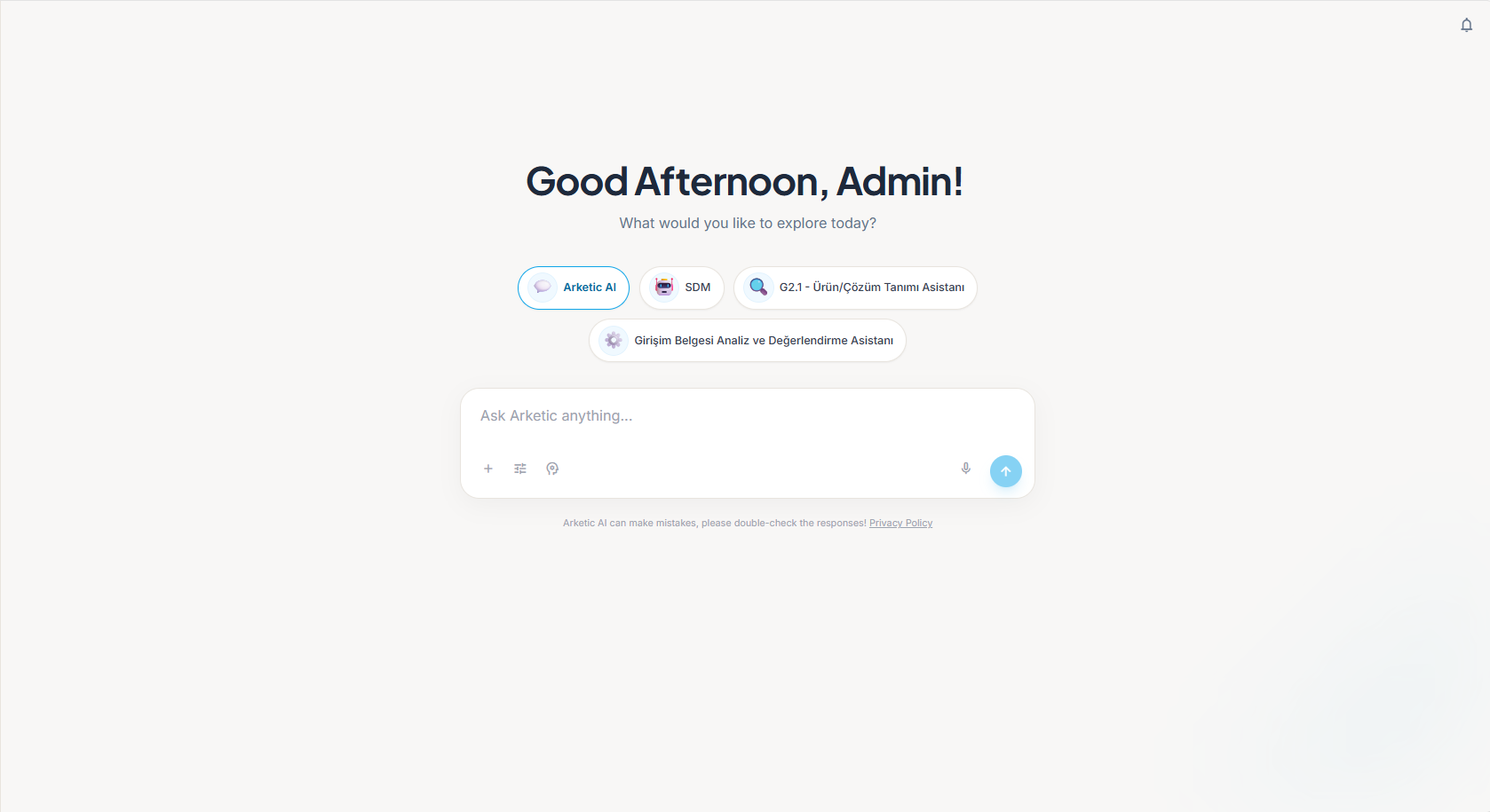
The Chat Home Screen
When you click New Chat, you see a starting screen instead of an empty conversation.
| What you see | What it does |
|---|---|
| Greeting | A time-of-day greeting — Good Morning, Good Afternoon or Good Evening — followed by your first name |
| "What would you like to explore today?" | A prompt to get you started |
| Suggested assistant chips | Up to four small chips, each showing an assistant's avatar and name |
| Message box | Where you type your first message |
Clicking a suggested chip selects that assistant for the chat you're about to start. It does not send anything — the chip you picked stays highlighted, and you still type your own first message.
The suggested assistants are personalised to you. They're based on the assistants you use most, then on what's used in your department and organisation. You may see a different set from a colleague, and the set can change over time.
The suggestions are a shortcut, not the full list. If the assistant you want isn't among the chips, open Assistants in the sidebar and use Start Chat there instead.
The Assistant Welcome Screen
When you start a chat with an assistant and haven't sent your first message yet, the assistant introduces itself.
| Element | Details |
|---|---|
| Avatar | The assistant's character or emoji. Illustrated characters wave a greeting when the screen opens |
| Name | The assistant's name |
| Description | A short line about what the assistant is for. Shown only if the assistant has one |
| Starter questions | Up to four suggested questions you can click |
Clicking a starter question fills the message box with that question. Nothing is sent yet, so you can edit the wording, add detail, or delete it and write your own before sending.
Starter questions are written by whoever set the assistant up. If none were added, no question chips appear — just type your question normally.
Once the Conversation Starts
As soon as the conversation has messages, the welcome screen is replaced by the normal chat view with a header at the top.
The header shows:
- The assistant's avatar, which animates to reflect what the assistant is doing right now — waiting, listening, or answering.
- The assistant's name, so you always know who you're talking to.
- The conversation title.
Some assistants also suggest follow-up questions after an answer. They appear as chips just above the message box. Unlike starter questions, clicking one sends it straight away.
For everything you can do inside a conversation — attachments, tools, history — see Starting a Chat.
What Changes When You Pick a Different Assistant
Choosing an assistant is not just a change of name. Your admin configures each assistant separately, and that shapes the answers you get.
| What differs | What it means for you |
|---|---|
| Knowledge access | Which documents and areas of your organisation's knowledge the assistant is allowed to search, plus any documents attached to it directly |
| Available actions | What it can actually do — for example read a document, summarise a document, or look up information about your organisation |
| Web search | Some assistants can look things up on the web; others answer only from your organisation's knowledge. When an assistant has web search, a Web Search switch appears in the Tools menu of the message box so you can turn it on or off |
| Thinking | With the brain icon switched on, the assistant reasons through a problem before answering, which helps on complex questions. How much of that reasoning you see can differ between assistants — see Thinking Mode |
| Personality and specialism | The instructions and category it was set up with — how formal it is, how detailed it is, and what subject it focuses on |
If an assistant can't answer something, it often means the information sits outside the knowledge it's allowed to search. Try a more general assistant such as Arketic AI, or ask your admin to extend that assistant's knowledge access.
You can't change these settings yourself. Creating and configuring assistants is done by your admin — or by someone your organisation has given that job through a custom role.
Assistant Categories
Every assistant carries a category label, which tells you at a glance what it's meant for. The available categories are:
General · Support · Sales · HR · Technical · Finance · Legal · Marketing · Other
You can filter the browse grid by category — see Browsing Assistants.
Examples
Your organisation decides which assistants exist and what they're called, so what you see will differ. A typical set-up might look like this:
| Example assistant | What it might be used for |
|---|---|
| Arketic AI | The general-purpose assistant. This is the one selected by default when you start a new chat |
| HR Assistant | Employee policies, org structure, leave questions |
| IT Support | Troubleshooting, software requests, internal procedures |
| Legal Assistant | Contract questions, compliance, policy interpretation |
| Finance Assistant | Budget queries, expense policies, reporting |
Only Arketic AI is a name the platform itself looks for as the default. The rest are illustrations — your organisation may have completely different assistants, or none of these.
One Assistant per Conversation
Each conversation is tied to a single assistant, chosen when the conversation is created. There is no way to swap assistants halfway through a chat.
To talk to a different assistant:
- Click New Chat in the sidebar, or open Assistants and click Start Chat on another card.
- Pick the assistant you want.
- Ask your question in the new conversation.
Your earlier conversation is not lost. It stays in your recent chats in the sidebar with its original assistant, and you can reopen it at any time. See Chat History.
Because assistants don't share a conversation, context doesn't carry across. If you move a question to a different assistant, include the background it needs — pasting the key details or re-attaching the file.
Assistant Chats vs Project Chats
| Assistant chat | Project chat | |
|---|---|---|
| Assistant | You choose which assistant to talk to | Not tied to an assistant you pick — there's no assistant picker or welcome screen |
| Visibility | Yours | Shared with the members of the project |
| Best for | Quick questions and one-off tasks | Ongoing work you do together with a team |
For everything else about project conversations, see Projects.
Rating an Answer
Every assistant answer has thumbs-up and thumbs-down buttons.
- Click the thumbs-up icon (tooltip: Helpful) to mark an answer as helpful.
- Click the thumbs-down icon (tooltip: Not helpful) to mark it as not helpful.
- The icon you chose stays highlighted. Click it again to remove your rating.
Ratings help the people who maintain your assistants see which ones are working well.
Tips
- Match the assistant to the question. An assistant set up for HR will usually beat a general one on HR questions, because it's pointed at the right knowledge.
- Start from a starter question when there is one. They show you what the assistant is good at, and you can edit them before sending.
- Be specific. Even a specialised assistant answers better with a clear, detailed request.
- Try another assistant if you get stuck. A different assistant may be allowed to search the information you need.
- Rate the answers. The 👍 / 👎 buttons are the quickest way to signal what's working.
More advice on writing good requests is in Tips & Best Practices.