Website Sources
Add a website to your organization's Knowledge Base, and Arketic keeps its pages up to date automatically — recrawling the site on whatever schedule you choose. This page explains how to add a website, what the access levels and refresh schedules mean, how to read a site's status, and how to manage or remove it.
The Websites Tab
Open Knowledge Base from the sidebar. At the top of the page, next to Documents, there is a Websites tab.

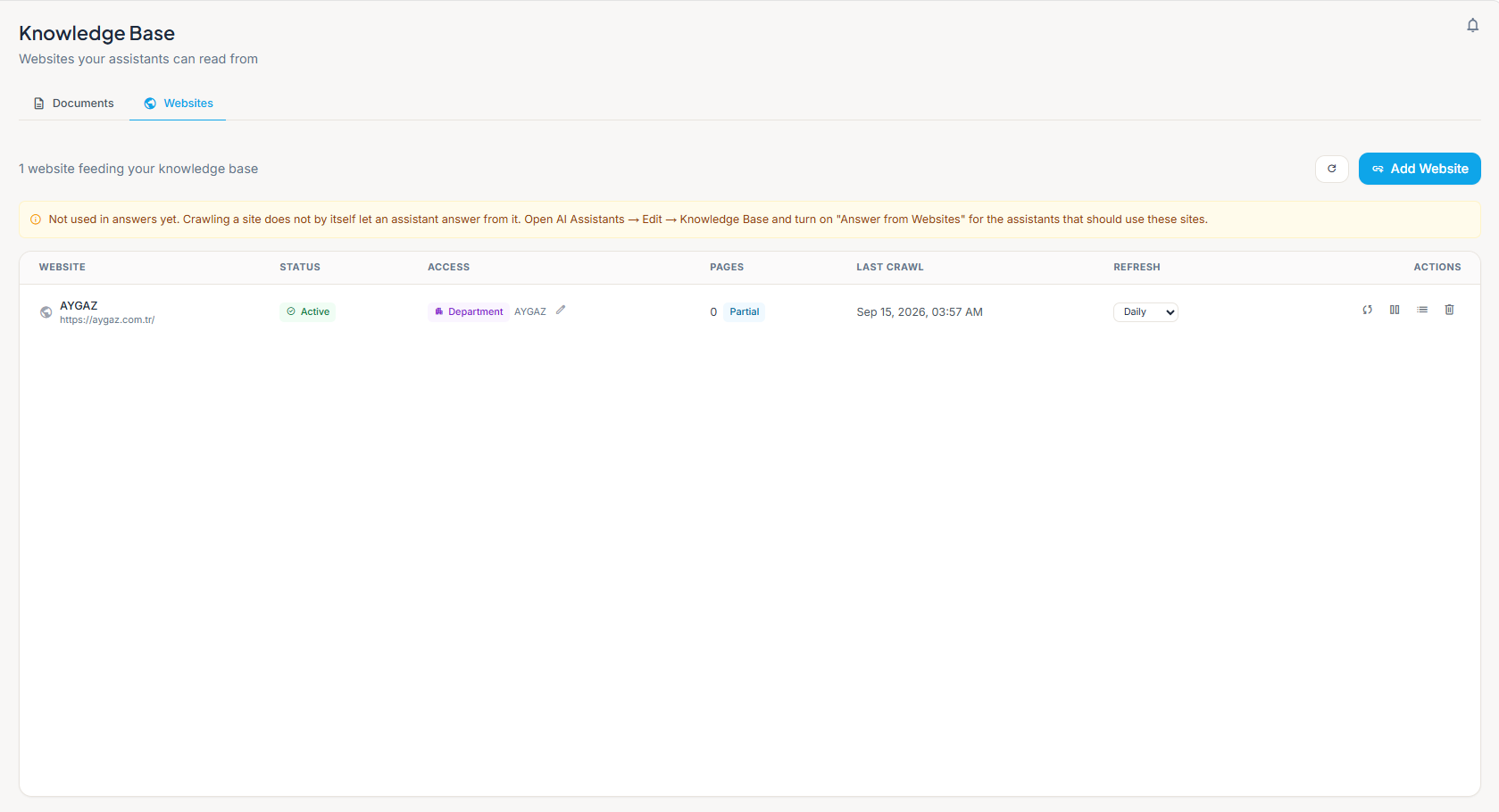
Switch to it and the page's subtitle changes to "Websites your assistants can read from". Underneath, a line tells you how many websites are already feeding your knowledge base, next to a refresh button (circular arrow) and an Add Website button.
No websites yet? You'll see No websites yet, a short explanation, and an Add Website button to get started.
Adding a Website
Adding a website works like adding a document: anyone who can open the Knowledge Base can add a Personal or Organization site. Adding a Department site requires managing that department, or being an Admin or Executive.
- Open Knowledge Base from the sidebar and switch to the Websites tab.
- Click Add Website. The Add Website dialog opens.
- Enter the Website address to start from — for example
https://example.com. Arketic follows links within the same site from there, and re-reads the pages on the schedule you set below. - Optionally give it a Name. Leave it blank and Arketic uses the address instead.
- Under Who can use it, choose an access level. If you choose Department, also choose Which department.
- Under Re-read the site, choose a refresh schedule.
- Click Add and start crawling. The first crawl starts right away — you don't need to wait for the schedule.
Who can use it
| Level | Who can use the site |
|---|---|
| Personal | Only you |
| Department | Everyone in the department you choose |
| Organization | Everyone in your company |
Websites support three access levels. Team and Confidential, which exist for documents, aren't available for websites.
When you choose Department, a Which department list appears with every department in your organization, and the hint "You can only publish to a department you manage." Only picking one you actually manage will save — Admins and Executives can choose any department. Picking one you don't manage shows the error "You do not have permission to add a website to this department."
Re-read the site
| Option | What it means |
|---|---|
| Manual — only when I press Refresh | Arketic only recrawls the site when you press Crawl now |
| Hourly | Recrawled about once an hour |
| Daily | Recrawled about once a day |
| Weekly | Recrawled about once a week |
In the Websites table the first option is shortened to Manual.
Organization and Weekly are the defaults. Change either one before adding the site if you need something different.
Each website can only be added once. If you try to add a site that's already in your knowledge base, you'll see "This website is already a knowledge source".
Reading a Website's Status
The Websites table shows one row per site:
| Column | Shows |
|---|---|
| Website | The site's name (or its address, if you didn't give it one) and, underneath, the full address. Click it to see the site's indexed pages. |
| Status | Whether the site is healthy right now. |
| Access | Who can use the site, with a pencil icon to change it. |
| Pages | How many pages are indexed, and a coverage badge. |
| Last crawl | When the site was last crawled. |
| Refresh | The recrawl schedule — change it directly from this dropdown. |
| Actions | Four icon buttons: crawl now, pause or resume, view pages, and remove. |
Status badges
| Badge | Meaning |
|---|---|
| Active | Healthy. The last crawl completed normally and nothing is running right now. |
| Crawling… | A crawl is running right now. The page count and last-crawl date on this row are still from the previous crawl until this one finishes. |
| Paused | Scheduled crawls are off. The site stays in your knowledge base, but it won't refresh on its own. |
| Last crawl failed | The most recent crawl hit a problem. Click the badge to open the site's pages and see why. |
| Crawl didn't finish | A crawl started but never reported back. Click the badge to try again. |
Coverage badges
| Badge | Meaning |
|---|---|
| Not crawled yet | The first crawl is queued. It can take several minutes on a large site. |
| Partial | Pages were indexed, but the crawl stopped at a depth or page limit. |
| Complete | Every reachable page on the site was crawled. |
Partial doesn't mean something is wrong. Most real websites are large enough that a crawl stops at a limit before reaching every corner of the site — Partial is the normal, healthy result for most sites, not a warning. Arketic doesn't show a percentage for it either: without a reliable way to know how big the whole site really is, a percentage would just be a guess.
If some pages couldn't be read, a line appears under the page count, such as "2 pages returned nothing usable". The rest of the site is still indexed normally.
Changing Who Can Use a Website
- In the Access column, click the pencil icon next to the site's badge.
- Choose a new level. If you choose Department, also choose which department.
- Click Save.
A confirmation dialog explains what's about to change before it takes effect:
- Widening access (for example, Personal to Organization) asks "Widen access to this website?" and tells you assistants will start answering from it for the new audience right away. Confirm with Widen access.
- Narrowing access asks "Change who can use this website?" and tells you that anyone outside the new audience stops getting answers from it right away. Confirm with Change access.
Changes take effect immediately — there's no separate publish step. If a crawl is running when you change access, pages it writes over the next few minutes keep the old access until the next crawl. Press Crawl now once it finishes to apply the new access to everything.
Refreshing, Pausing, and Removing a Website
Use the icon buttons in the Actions column. Hover over an icon to see what it does.
- Crawl now — queues a crawl immediately, regardless of the schedule. It's disabled while a crawl is already running, and then reads "A crawl is already running".
- Pause scheduled crawls / Resume scheduled crawls — pausing turns off scheduled crawls; the site and its pages stay in your knowledge base, but it won't refresh on its own. A paused site also won't accept Crawl now until you resume it first.
- View indexed pages — opens the list of pages the site put into the knowledge base.
- Remove website — permanently deletes the site and every page it indexed. Assistants stop answering from it immediately, and adding the same site again means crawling it from scratch. A Remove this website? dialog spells this out; click Remove to confirm.
You can change, pause or remove the sites you added yourself. Admins and Executives can do this for every site.
Viewing a Website's Indexed Pages
Click a site's name, or the list icon in Actions, to open its pages.
Crawled pages don't appear in the regular Knowledge Base document list or its search — a single website can add hundreds of pages, which would bury your uploaded documents. To see what a site actually indexed, open it from the Websites tab.
The pages panel shows:
- The site's name and a link to the live site.
- The same coverage line shown in the table, and — if the last crawl failed — the reason why, after "Last crawl failed:".
- A Search pages… box to find a page in the list.
- Each page's name and address. A page that's been crawled but isn't searchable yet shows an Indexing badge.
If a site has more than 50 pages, use Previous and Next at the bottom to page through them.
Getting Website Answers in Chat
Adding and crawling a website does not by itself let any assistant answer questions from it. That's a separate setting on the assistant itself.
If your organization has websites in the knowledge base but no assistant is set up to use them yet, the Websites tab shows a reminder:
"Not used in answers yet. Crawling a site does not by itself let an assistant answer from it. Open AI Assistants → Edit → Knowledge Base and turn on "Answer from Websites" for the assistants that should use these sites."
See AI Assistant Configuration for how to set up an assistant's knowledge sources.
Messages You May See
| Message | What it means | What to do |
|---|---|---|
| "This website is already a knowledge source" | This exact site is already in your knowledge base | Find it in the list instead of adding it again |
| "You do not have permission to add a website to this department." | You tried to publish to a department you don't manage | Choose a department you manage, or ask an Admin or Executive |
| "This website is not available to you. You can only change sites you own, or ask an admin." | You tried to change or remove a site someone else added | Ask the site's owner or an Admin |
| "Some of the information is not valid. Please check it and try again." | The request was refused — for example you clicked Crawl now on a paused site, or the address you entered is not a usable website address | For a paused site, click Resume scheduled crawls first, then Crawl now. Otherwise check the address |