Searching the Knowledge Base
There are two ways to find what you need in your organization's Knowledge Base: ask the AI in chat, or browse and filter on the Knowledge Base page.
Both respect your access level — you only ever see documents you are allowed to see.
Which Method Should You Use?
| You want to... | Use |
|---|---|
| Get an answer to a question | Chat — the AI reads the documents and answers you |
| Find a document by its name | Knowledge Base page — the search bar filters by document name |
| Browse everything shared at a certain access level | Knowledge Base page — the Access Level filter |
| See what a specific department has shared | Knowledge Base page — the Departments tree |
| Narrow results to PDFs, spreadsheets, images, etc. | Knowledge Base page — the File Type filter |
:::info Who can use each method Anyone with a chat can ask the AI questions about the Knowledge Base.
The Knowledge Base page itself is by default open to Admins, Executives, and department Managers (members who manage a root department). Your organization can also give it to other people through a custom role — see Roles & Permissions. If you don't see Knowledge Base in your sidebar, use chat instead.
On the page, searching and filtering are each allowed separately. If your role does not include one of them, the control is greyed out and shows "You don't have permission to search" or "You don't have permission to filter" when you hover over it. :::
Search Through Chat (Recommended)
The easiest way to search is to ask the AI:
"What does our vacation policy say?" "Find documents about data protection" "What's the process for requesting new equipment?"
The AI searches the Knowledge Base, finds relevant documents, and gives you a direct answer with source citations showing which documents it used.
This is the most powerful search method. The AI understands meaning, not just keywords. So "how many days off do I get?" finds the vacation policy even though you didn't use the word "vacation."
For an assistant to use the Knowledge Base, Enable Knowledge Base has to be turned on in that assistant's settings. See AI Assistant Configuration.
Search on the Knowledge Base Page
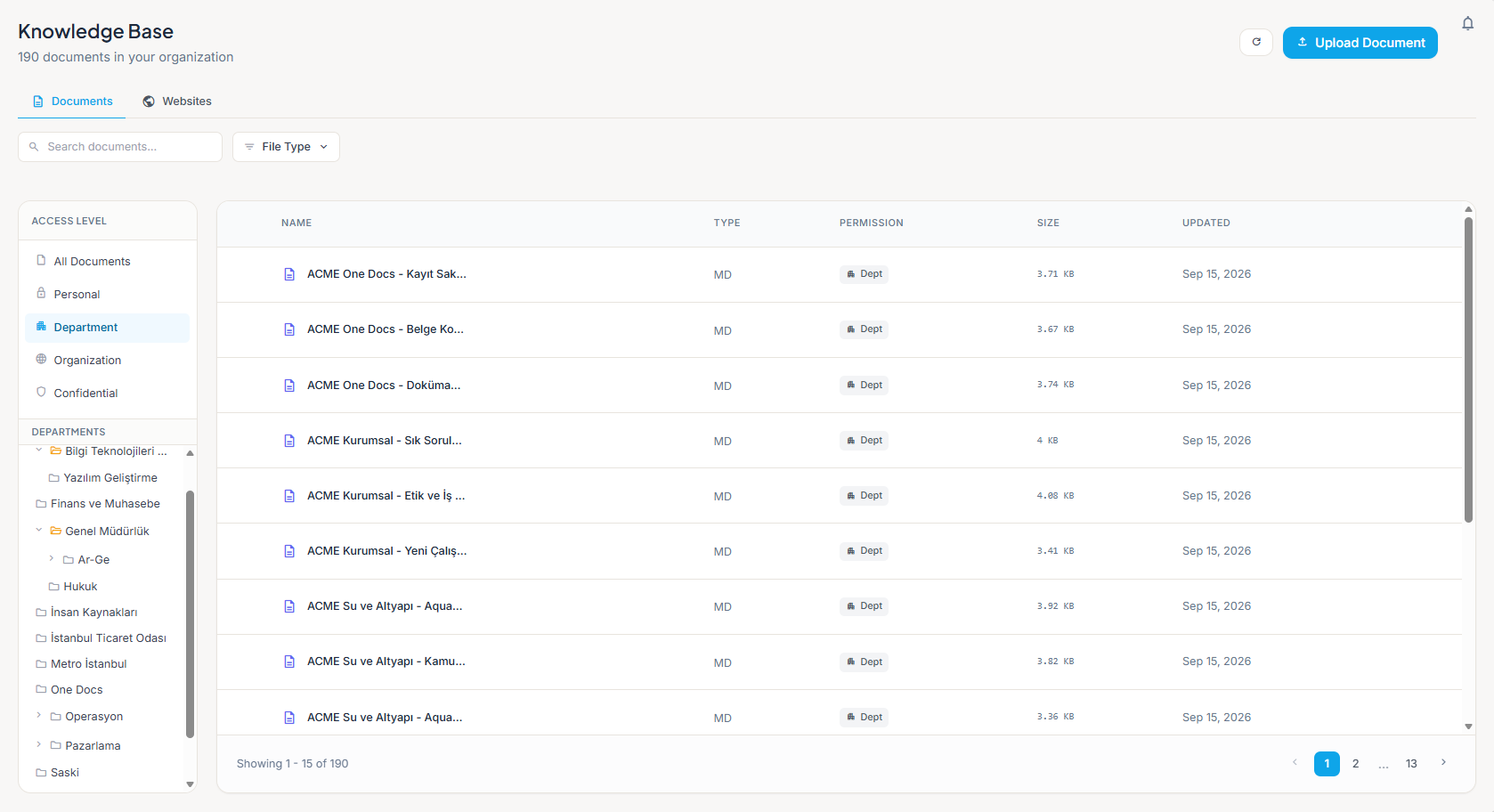
Go to Knowledge Base in the sidebar and stay on the Documents tab. The page has a search bar and a filter row at the top, an Access Level panel on the left, and the document list on the right.
The Search Bar
- Click the search box labelled Search documents... at the top-left of the filter row.
- Start typing. Results update as you type — you don't need to press Enter.
- Click a document row to open its details, or double-click it to open the preview.
:::note This search matches document names
The search bar on this page filters by document name, not by what's inside the file. It is not case-sensitive, and it matches any part of the name — typing policy finds Travel Policy 2024.
To search by meaning and content, ask the AI in chat instead. :::
Filter by Access Level
The left-hand panel is headed Access Level. Pick one option to narrow the list:
| Option | Shows |
|---|---|
| All Documents | Everything you are allowed to see |
| Personal | Documents you uploaded for yourself only |
| Department | Documents shared with a department |
| Organization | Documents shared with everyone in the organization |
| Confidential | Restricted documents (Admins and Executives only) |
Selecting an option immediately reloads the list. Switching away from Department also clears any department you had selected in the tree.
Access-level filters never widen your access. Choosing Confidential as a department Manager or member simply returns nothing, because those documents are limited to Admins and Executives. See Access Levels for the full rules.
The Access Level panel is shown on wide screens. On a narrower window it is replaced by a dropdown with the same five options, next to the File Type button. The Departments tree is part of the panel, so it is available on wide screens only.
Browse by Department
When you select the Department access level, a Departments tree appears underneath the filter buttons. It mirrors your organization's department structure.
| Action | What happens |
|---|---|
| Click the chevron next to a department | Expands or collapses its sub-departments |
| Click a department name | Filters the list to that department's documents |
| Click the same department again | Deselects it and shows all department documents again |
| Click Show all department docs | Clears the selected department |
Folder icons show the state at a glance: a closed folder for a collapsed department, an open folder for one that is expanded or selected.
:::info Which departments you see Admins and Executives see the whole department tree. A department Manager sees only the departments they manage, along with the departments beneath them. :::
Filter by File Type
Next to the search bar there is a File Type button. Click it to open a dropdown headed File Type:
| Option | Matches |
|---|---|
| All Types | No file-type filter (clears your selection) |
| PDF documents | |
| Excel | Spreadsheets |
| Word | Word documents |
| Images | PNG, JPG, GIF, and WebP files |
| Text | Plain text and CSV files |
| Presentation | PowerPoint presentations |
You can select more than one type at a time. Selected types get a checkmark, and the File Type button shows a small badge with how many types are active. Click a selected type again to remove it, or choose All Types to clear them all.
Combining Search and Filters
The search bar, the Access Level panel, the Departments tree, and the File Type filter all work together. For example: choose Department, click Finance in the tree, select Excel under File Type, and type budget in the search box to see only Finance budget spreadsheets.
If nothing matches, the list shows No documents found with the hint "Try adjusting your filters". Clear one filter at a time until results come back.
Reading the Results
The document list is a table with these columns:
| Column | What it tells you |
|---|---|
| Name | The document's file name. A small badge next to it — Indexing…, Unreadable, Not indexed or No text — means the AI cannot use the file yet; see Reading status in the list |
| Type | The file format |
| Permission | The access level badge — Personal, Team, Dept, Organization, or Confidential |
| Size | How large the file is |
| Updated | When the document last changed |
Other things you can do from the list:
- Click a row to open the detail panel. It shows the document's Type, Size, Uploaded and Last Updated dates and its Permission badge, with a Click to preview area, a Change link for the permission, a Download button and a Delete Document button.
- Double-click a row to jump straight to the preview.
- Select rows with the checkboxes to act on several documents at once. A bar appears showing how many documents are selected, with Delete and Cancel.
- Turn pages with the numbered buttons and arrows at the bottom. The list shows 15 documents per page, and the footer tells you which ones you're looking at — for example "Showing 1 - 15 of 48".
- Click the refresh button (circular arrow, top-right) to reload the list after someone else uploads or changes something.
Previewing, downloading, changing the permission and deleting are each allowed separately. If your role does not include one of them, that control is simply not there.
Deleting documents cannot be undone. Both ways of deleting ask you to confirm first: Delete Document in the detail panel opens Delete document?, and Delete in the selection bar opens a window such as Delete 3 documents?, where you confirm with Yes, Delete. Read it before you continue.
How Search Works
Whether you search through chat or on the Knowledge Base page:
- Only documents you have permission to see are included. Filtering never reveals anything above your access level.
- The same rules apply to AI answers, so the AI will never quote a document you aren't allowed to open.
- In chat, the AI understands meaning and context, not just exact word matches.
- Source citations tell you which documents an answer came from, and several documents can contribute to one answer.
- On the Knowledge Base page, matching is on the document name.
- Pages that come from a website source are not part of this list or its search — open them from the Websites tab. See Website Sources.
Search Tips
| Tip | Example |
|---|---|
| Ask questions naturally | "How do I submit an expense report?" |
| Be specific | "What's the travel expense limit for domestic trips?" |
| Reference document types | "Find the IT security guidelines" |
| Ask for comparisons | "What's the difference between sick leave and personal leave?" |
| Cross-reference | "Find all documents that mention GDPR compliance" |
| Name search: use a distinctive word | Type onboarding rather than the full file name |
| Narrow before you scroll | Set the access level and file type first, then search |
When Search Doesn't Find What You Need
If you can't find a document:
- Check your filters — an access level, a selected department, or a file type may be hiding it. Choose All Documents and All Types and try again.
- Try a shorter search term — the page matches document names, so a long phrase may not match.
- The document might not exist — ask your admin to upload it. See Uploading Documents.
- You might not have access — the document may be at a higher access level, such as Confidential.
- Rephrase in chat — ask the AI the same question in different words, or more specifically.
Related Pages
- Knowledge Base Overview — what the Knowledge Base is and who can see it
- Access Levels — who can see which documents
- Uploading Documents — add documents to the Knowledge Base
- Starting a Chat — ask the AI your first question